
Dynamic AI Prompt Launcher using Salesforce Formulas
This hack demonstrates a simple concept to generate dynamic AI prompts from Salesforce data and launch them directly into tools like ChatGPT or Google AI, enabling instant company insights with one click. The insights can be tailored depending on the customer or lead, allowing users to select the most relevant topics for each record. (Limited by the free usage tiers, quotas, and potential restrictions under intensive use imposed by each AI provider).
HACKS
Warning: This approach generates AI queries using external tools via URL parameters. Since the data is sent to third-party services (e.g., ChatGPT or Google), it is best suited for corporate or publicly available information, avoiding the use of sensitive or confidential data.
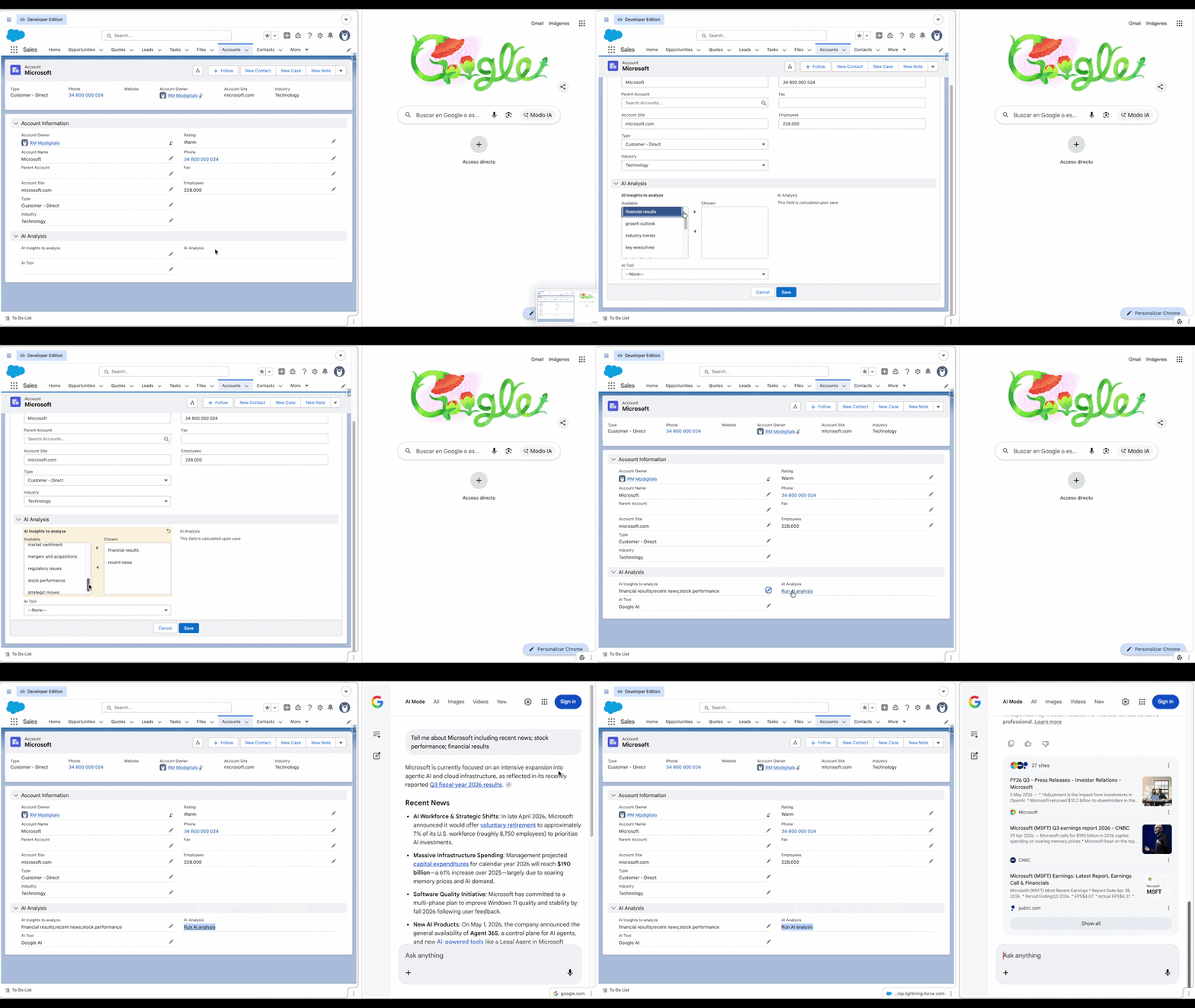
Configuration
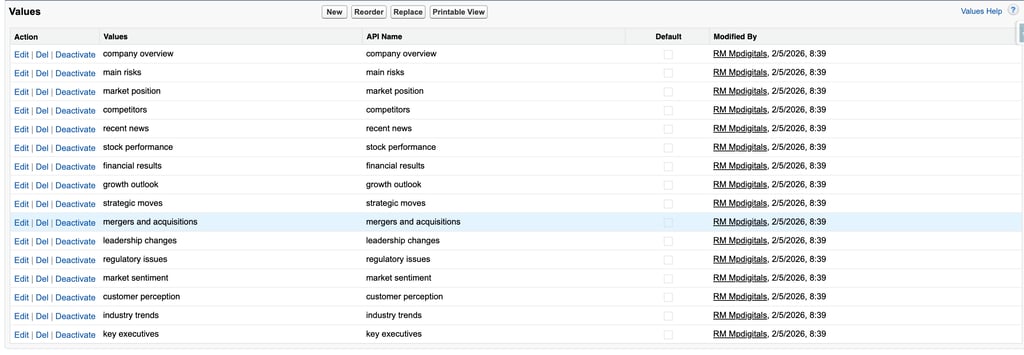
First, create a Multi-Select Picklist field (e.g., AI_Insights_to_analyze__c) with the values that fit your use case. These values represent the different types of insights that can be included in the AI query, such as company overview, market position, or financial results. Users will select one or more of these options to dynamically build the prompt.
Next, create a Picklist field (e.g., AI_Tool__c) to define the AI provider. As shown below, each picklist value stores the base URL of the tool in the API Name field (e.g., ChatGPT, Google AI, Perplexity). This allows the formula to dynamically route the query to different AI platforms without changing the logic.


Next, create a Picklist field (e.g., AI_Tool__c) to define the AI provider. As shown below, each picklist value stores the base URL of the tool in the API Name field (e.g., ChatGPT, Google AI, Perplexity). This allows the formula to dynamically route the query to different AI platforms without changing the logic.
Once both fields are configured, create a new Formula field (Text) containing the logic described in the Formula Explanation section. This formula dynamically builds the query based on the selected insights and concatenates it with the chosen AI tool URL.
Add this formula field to the Page Layout or Lightning Record Page so users can easily access it. When users click the generated link (“Run AI analysis”), Salesforce will:
build a dynamic prompt based on the selected values
Open the selected AI tool (ChatGPT, Google, Perplexity, etc.)
Prefill the query automatically
However, note that this implementation does not perform explicit URL encoding. Modern browsers automatically encode spaces (e.g., converting them to %20), but if your data contains special characters (such as &, #, or %), this may affect how the query is interpreted by the target AI tool.
Formula Breakdown
1. HYPERLINK Function
HYPERLINK(url, friendly_name): This function creates a clickable link in Salesforce.
The URL is dynamically generated using Salesforce data and selected insights.
“Run AI analysis” is the label displayed to the user.
2. AI Tool Base URL
TEXT(AI_Tool__c): This retrieves the selected AI tool (e.g., ChatGPT, Google AI) from a picklist field.
The value contains the base URL used to launch the query.
Example: https://chat.openai.com/?q=
The link is only generated when a valid AI Tool is selected, preventing broken URLs.
3. Prompt Construction
“Tell me about “ & Name & “ including “: This builds the base of the AI prompt.
Name refers to the Salesforce record (e.g., Account Name).
INCLUDES(field, value): This checks whether a specific insight is selected.
Each condition appends part of the prompt:
This pattern is repeated for all selected values, dynamically building the query.
4. String Concatenation
& (concatenation operator): All parts of the prompt are combined into a single string.
5. Trailing Separator Handling
A special marker character (|) is appended at the end of the string.
Two SUBSTITUTE functions are then used:
The first removes the trailing separator pattern ("; |"), ensuring there is no extra semicolon at the end.
The second removes the marker itself ("|"). This step is essential because, if no insight is selected, the string would end with only the marker (e.g., "Tell me about Microsoft including |"). Removing it ensures that only the base query remains, without any residual characters.
6. Final Output
The result is a dynamically generated URL like:
When clicked, it opens the selected AI tool with the query prefilled, allowing the user to instantly run the analysis.
Related Stories
mpdigitals.com © 2026 | Salesforce insights and digital transformation